First Upload
This guide walks you through uploading your first quotation file.
Before You Start
Ensure you have:
- ✅ System installed and running
- ✅ User account created (uploader or processor)
- ✅ Excel file prepared in correct format
- ✅ SAP HANA connection configured (optional)
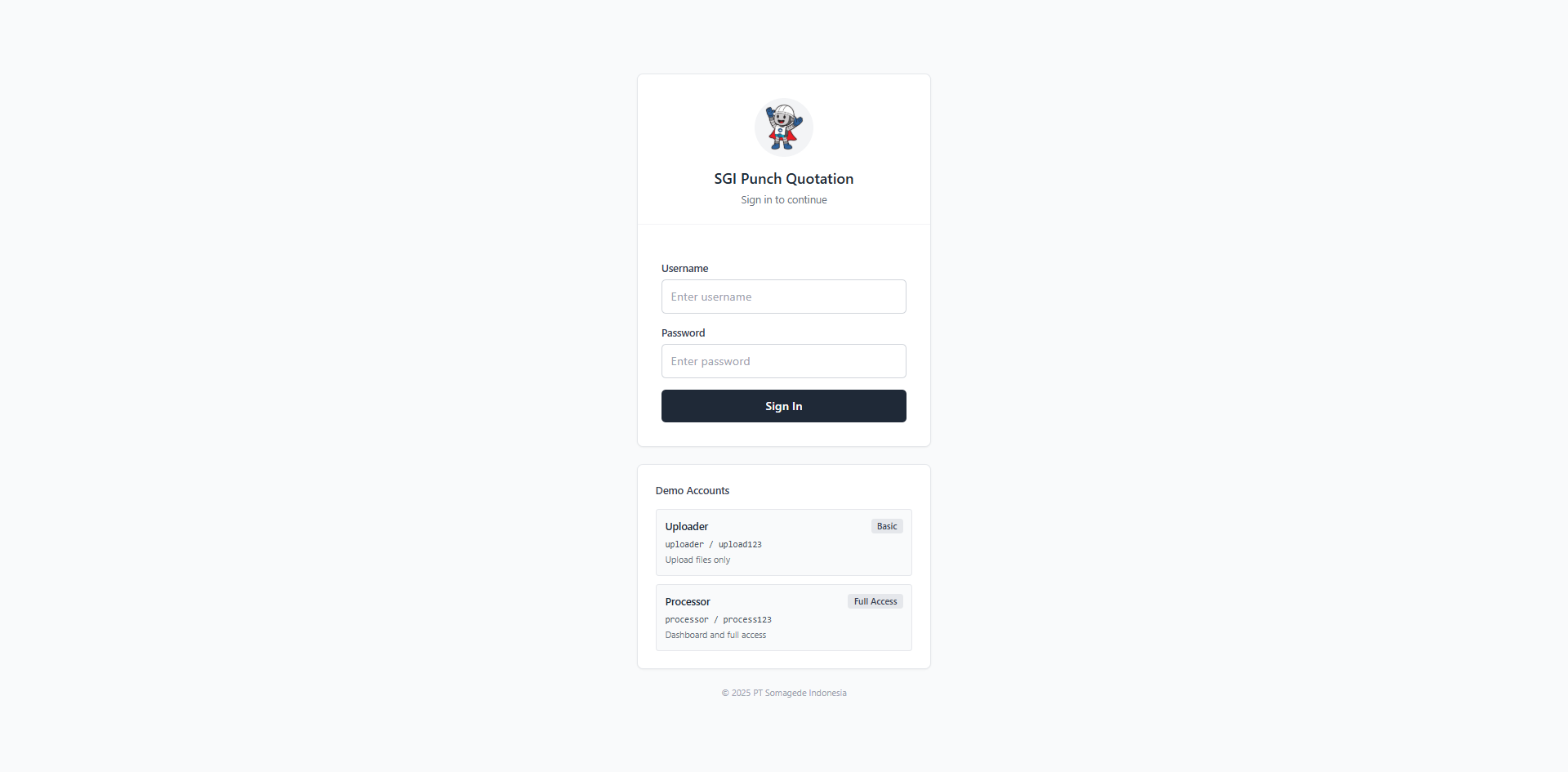
Step 1: Login
- Navigate to
http://172.16.1.172:8000 - Enter your credentials:
- Username:
processororuploader - Password: Your password
- Username:
Step 2: Navigate to Upload Page
After login, you'll be redirected based on your role:
- Processor: Redirected to Dashboard → Click "Upload Files"
- Uploader: Redirected directly to Upload page
Step 3: Prepare Your Excel File
Your Excel file should contain:
Required Sheets
PII Sheet (PT Punch Industry Indonesia)
- Contains quotation details
- Customer information
- Item lists with pricing
SGI Sheet (PT Somagede Indonesia) - Optional
- Can be Standard, TMMIN, METINDO, or MARUICHI format
- Contains sales-specific information
File Requirements
- Format:
.xlsx(Excel 2007+) - Size: Maximum 10MB
- Sheets: At least one quotation per sheet
- Structure: Must follow template format
See Excel Format Requirements for details.
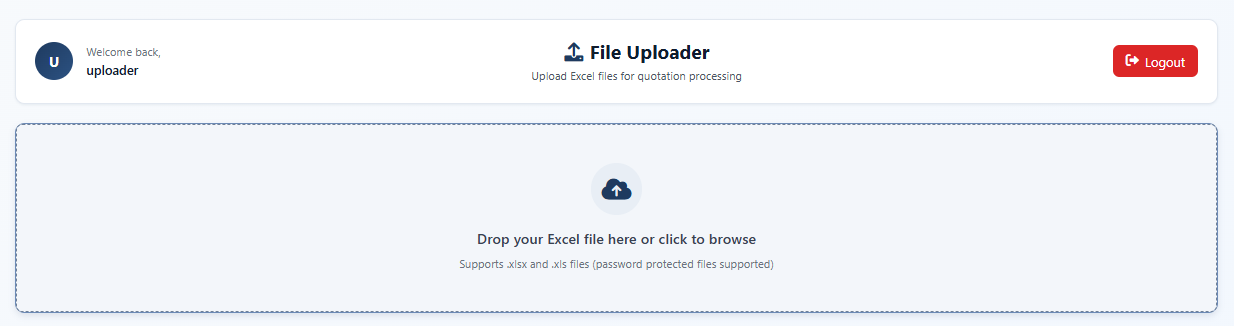
Step 4: Upload File
- Click "Choose File" or drag and drop your Excel file
File validation occurs automatically:
- ✅ File type check
- ✅ Size verification
- ✅ Sheet detection
Click "Upload and Process" button
Step 5: Processing
The system will:
- Extract Data - Read quotations from Excel sheets
- Validate Format - Detect quotation types (Standard, TMMIN, METINDO, MARUICHI)
- Check SAP - Query SAP HANA for item availability (if configured)
- Generate Session - Create upload session with unique ID
- Send Notification - Send Teams notification (if configured)
Processing Time
- Small files (1-5 quotations): ~5-10 seconds
- Medium files (6-20 quotations): ~15-30 seconds
- Large files (20+ quotations): ~30-60 seconds
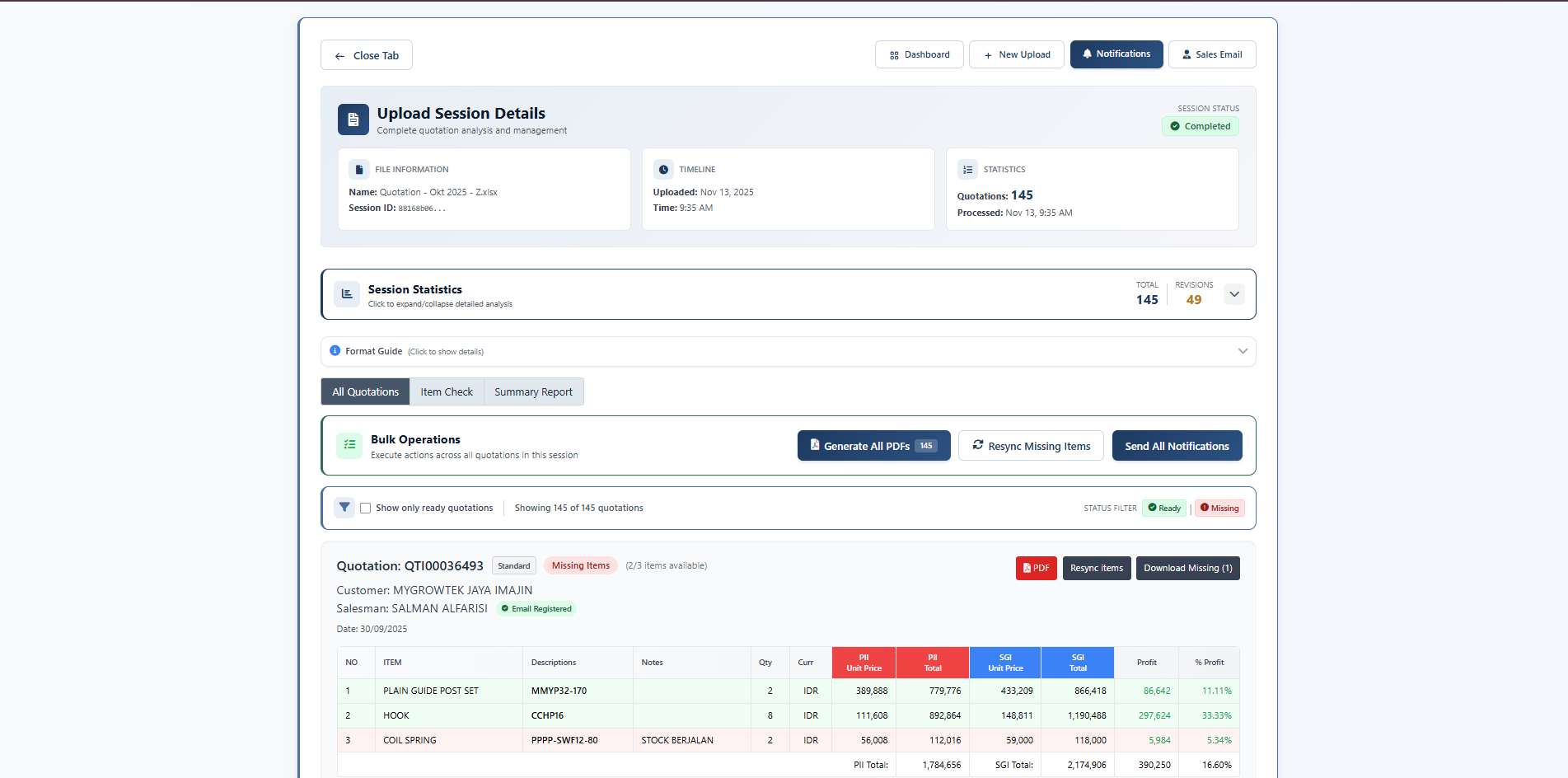
Step 6: View Results
After processing completes:
- Automatic Redirect to Session Detail page
- Summary displayed:
- Total quotations processed
- Format breakdown (Standard, TMMIN, METINDO, MARUICHI)
- Items requiring attention
Session Detail Tabs
1. All Quotations Tab
- View all extracted quotations
- Customer names
- Quotation numbers (QTI)
- Dates and formats
2. Item Check Tab
- SAP HANA availability check
- Missing items highlighted in red
- Available items shown in green
- Download reports:
- All items CSV
- Missing items template
3. Summary Report Tab
- Statistics per quotation
- Unique SKUs count
- Total quantities (PII/SGI)
- Total prices (PII/SGI)
- Download summary CSV
Step 7: Generate PDFs
- Click "Generate All PDFs" button
- System creates individual PDF for each quotation
- Download PDFs:
- Individual: Click download icon per quotation
- Bulk: Click "Download All" to get ZIP file
Step 8: Send Notifications (Optional)
If you have processor access:
- Click "Send All Notifications" button
- Teams message sent with:
- Upload summary
- Statistics
- Link to session
Common Scenarios
Scenario 1: Mixed Format Upload
Your file contains:
- 3 Standard quotations
- 2 TMMIN quotations
- 1 METINDO quotation
Result: System automatically detects and processes each format correctly.
Scenario 2: Missing Items
Some items not found in SAP HANA:
- View "Item Check" tab
- Missing items highlighted in red
- Download template CSV
- Fill in missing item codes
- Upload to SAP HANA (separate process)
Scenario 3: Revision Quotations
File contains quotations with "REV" in QTI number:
Result: System counts and displays revision quotations separately in statistics.
Tips for Success
✅ DO
- Use template format consistently
- Verify SAP HANA connection before upload
- Check "Item Check" tab for missing items
- Download PDFs after generation
- Keep original Excel files as backup
❌ DON'T
- Upload files larger than 10MB
- Mix different template versions
- Upload password-protected Excel files
- Upload files with merged cells in data rows
- Delete sessions immediately after upload
Troubleshooting Upload Issues
File Upload Failed
Possible causes:
- File size exceeds 10MB
- Invalid file format (not .xlsx)
- Corrupted Excel file
- Network timeout
Solutions:
- Check file size and format
- Try re-saving Excel file
- Split large files into smaller batches
- Check server connection
Processing Stuck
Possible causes:
- SAP HANA connection timeout
- Large file processing
- Server overload
Solutions:
- Wait 2-3 minutes
- Refresh page to check status
- Check logs:
./view_logs.sh extraction - Contact administrator
No PDFs Generated
Possible causes:
- WeasyPrint not installed
- Missing fonts
- Invalid quotation data
Solutions:
- Check extraction logs
- Verify quotation data completeness
- Regenerate PDFs from session detail page
Missing Items in SAP Check
Expected behavior: Not all items may exist in SAP HANA.
Actions:
- Download missing items template
- Verify item codes with sales team
- Add new items to SAP HANA
- Re-sync inventory on session detail page